



Το Viber είναι μια δημοφιλής εφαρμογή ανταλλαγής μηνυμάτων για smartphones και tablet. Αν το χρησιμοποιείτε στο τηλέφωνό σας, πιθανώς γνωρίζετε ότι προς το παρόν υποστηρίζει για επιτραπέζιους υπολογιστές. Τούτου λεχθέντος, υπάρχουν και άλλες εφαρμογές ανταλλαγής μηνυμάτων που σας επιτρέπουν να συνομιλείτε με τους φίλους σας και σε επιτραπέζιους υπολογιστές.
Σήμερα θα σας δείξουμε πώς να μεταφέρετε τα μηνύματα Viber σε έναν υπολογιστή, ώστε να μπορείτε να συνομιλείτε με τους φίλους σας σε επιτραπέζιους υπολογιστές χρησιμοποιώντας το Viber desktop. Πριν ξεκινήσουμε, να θυμάστε ότι αυτή η μέθοδος δεν θα λειτουργήσει αν το άτομο στο οποίο θέλετε να στείλετε μήνυμα χρησιμοποιεί παλαιότερη έκδοση του Viber (έκδοση 2 ή 3). Για να βεβαιωθείτε ότι έχει την πιο πρόσφατη έκδοση του Viber, ζητήστε του να εγκαταστήσει και την τελευταία ενημέρωση από το κατάστημα εφαρμογών του.
Πώς να μεταφέρετε μηνύματα Viber σε υπολογιστή (βήμα προς βήμα)
– Αρχικά, κατεβάστε το Viber στον υπολογιστή σας.
– Στη συνέχεια, ανοίξτε το Viber τόσο στον υπολογιστή όσο και στο τηλέφωνό σας.
– Τώρα, στο τηλέφωνό σας, επιλέξτε το εικονίδιο με τις τρεις τελείες πάνω δεξιά και επιλέξτε Συγχρονισμένη συσκευή.
– Στον υπολογιστή σας, κάντε κλικ στο κουμπί Συγχρονισμένη συσκευή.
– Επιλέξτε τη συσκευή που θέλετε να αντιστοιχίσετε και κάντε κλικ στο κουμπί Ζεύξη.
– Θα δείτε έναν κωδικό στο τηλέφωνό σας, τον οποίο θα πρέπει να πληκτρολογήσετε στον υπολογιστή σας.
– Μόλις αντιστοιχίσετε τις συσκευές σας, ανοίξτε το Viber στον υπολογιστή σας και θα μπορείτε να στέλνετε και να λαμβάνετε μηνύματα όπως ακριβώς θα κάνατε και στο τηλέφωνό σας.
– Για να προσθέσετε το Viber στον υπολογιστή σας, κάντε κλικ στο κουμπί Προσθήκη στην επιφάνεια εργασίας.
Αναλυτικό οδηγό θα βρείτε σε αντίστοιχο άρθρο μας εδώ.
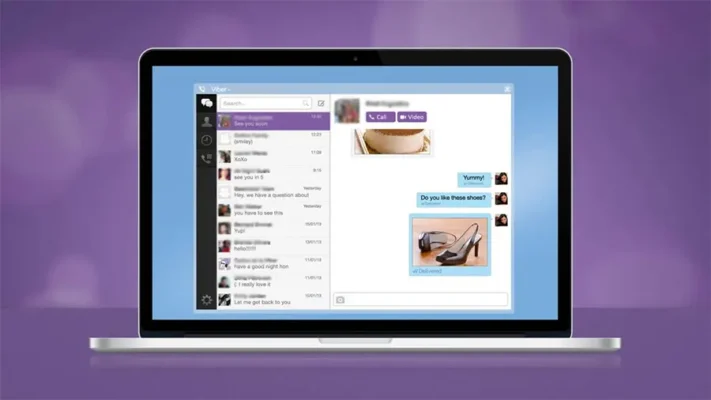
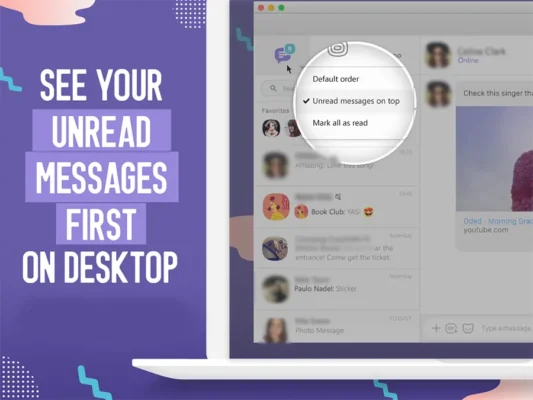
Με το Viber Desktop συγχρονισμένο, είστε έτοιμοι να ξεκινήσετε και να δείτε τα Αδιαβαστα μηνυματα στο viber!
Το Viber θα συγχρονίσει αυτόματα τη συσκευή σας, επιτρέποντάς σας να στέλνετε και να λαμβάνετε μηνύματα από τον υπολογιστή σας όπως ακριβώς θα κάνατε και στο τηλέφωνό σας. Σε περίπτωση που βρίσκεστε σε διαφορετική συσκευή, μπορείτε επίσης να αποκτήσετε πρόσβαση στο λογαριασμό σας Viber από το διαδίκτυο.
Το μόνο που έχετε να κάνετε είναι να επισκεφθείτε τον ιστότοπό τους και να συνδεθείτε. Μόλις συνδεθείτε, μπορείτε να έχετε πρόσβαση στα μηνύματά σας από οποιονδήποτε υπολογιστή ή συσκευή. Για να το κάνετε αυτό, κάντε κλικ στο κουμπί μενού επάνω αριστερά και επιλέξτε Το Viber μου. Από εκεί, μπορείτε να διαβάσετε τα μηνύματά σας και να απαντήσετε σε αυτά όπως θα κάνατε στο τηλέφωνό σας.
Πως να κατεβάσετε τα μηνύματα Viber στον υπολογιστή και να μην τα χάσετε ποτέ
Εάν ένα άτομο βασίζεται εξ ολοκλήρου στο Viber για όλους τους προσωπικούς και επιχειρηματικούς του σκοπούς επικοινωνίας, ένα τέτοιο άτομο δεν έχει την πολυτέλεια να χάσει ολόκληρα τα δεδομένα του Viber. Επομένως, κάθε άτομο θα πρέπει πάντα να δημιουργεί αντίγραφα ασφαλείας των μηνυμάτων Viber στα smartphone και στον υπολογιστή του.
Εάν χάσετε το τηλέφωνό σας και ξεχάσετε το Apple ή το google id σας, σε μια τέτοια περίπτωση, η δημιουργία αντιγράφων ασφαλείας των μηνυμάτων Viber στον υπολογιστή θα αποδειχθεί πολύ σημαντική για την ανάκτηση όλων των σημαντικών επαγγελματικών ή προσωπικών μηνυμάτων σας. Ακολουθούν τρεις εύκολοι τρόποι για να δημιουργήσετε αντίγραφα ασφαλείας των μηνυμάτων Viber στον υπολογιστή.
Μέρος 1. Δημιουργία αντιγράφων ασφαλείας των μηνυμάτων Viber από προεπιλεγμένο αρχείο Way-Zip,viber ρυθμισεις
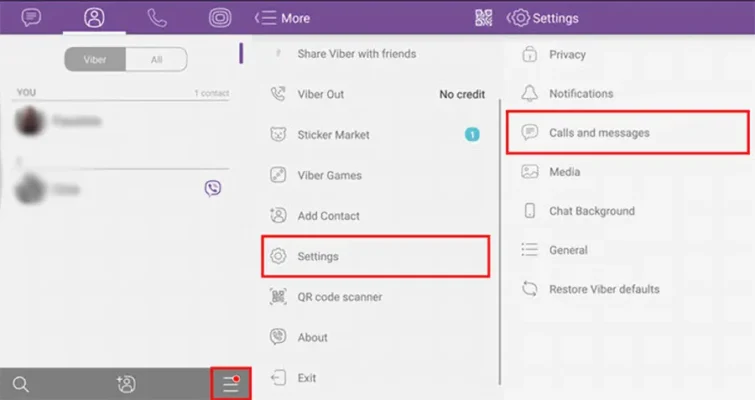
Το Viber, το ίδιο, προσφέρει έναν τρόπο μη αυτόματης δημιουργίας αντιγράφων ασφαλείας των μηνυμάτων Viber στον υπολογιστή, επιτρέποντάς σας να τα στείλετε μέσω email σε συμπιεσμένα αρχεία CSV στον εαυτό σας στο αναγνωριστικό email ή το αναγνωριστικό skype. Είναι μια απλή και απλή μέθοδος. Ακολουθήστε τα παρακάτω βήματα για να δημιουργήσετε αντίγραφα ασφαλείας των μηνυμάτων Viber στη συσκευή σας.
Βήμα 1: Ανοίξτε την εφαρμογή Viber
Εκκινήστε την εφαρμογή Viber στο smartphone σας. Κάντε κλικ στο κουμπί μενού και εισάγετε την επιλογή ρυθμίσεων στην εφαρμογή. Θα δείτε πολλές επιλογές, βρείτε και κάντε κλικ στο κουμπί «Κλήση και Μηνύματα».
Βήμα 2: Δημιουργία αντιγράφων ασφαλείας μηνυμάτων Viber
Επιλέξτε την επιλογή “Ιστορικό μηνυμάτων email”. Θα σας ζητηθεί να παρέχετε έναν λογαριασμό email.
Μέρος 2. Δημιουργία αντιγράφων ασφαλείας των μηνυμάτων Viber στον υπολογιστή μέσω του iTunes
Βήμα 1: Εκτελέστε την εφαρμογή iTunes Viber
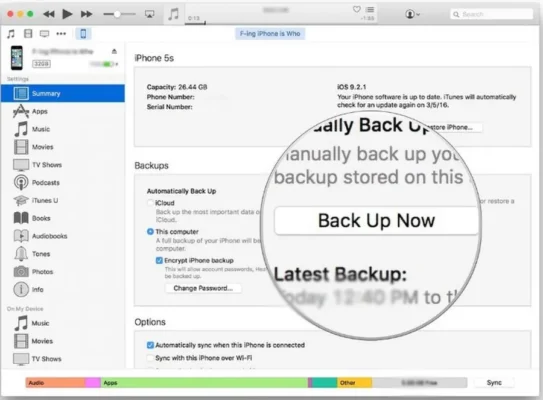
Πρώτα, συνδέστε το iPhone σας στον υπολογιστή σας και, στη συνέχεια, ανοίξτε την εφαρμογή iTunes στον υπολογιστή σας. Μετά την εκκίνηση του iTunes, θα σας ζητηθεί να επιλέξετε μια συσκευή. Επιλέξτε τη συσκευή σας ως “iPhone”.
Βήμα 2: Δημιουργία αντιγράφων ασφαλείας μηνυμάτων Viber
Στην αριστερή στήλη, θα δείτε πολλές επιλογές για να διαλέξετε. Κάντε κλικ στην επιλογή “σύνοψη”. Αυτό θα εμφανίσει όλη τη σύνοψη της συσκευής σας στη δεξιά πλευρά. Κάτω από την επικεφαλίδα της μη αυτόματης δημιουργίας αντιγράφων ασφαλείας, θα δείτε την επιλογή “Δημιουργία αντιγράφων ασφαλείας τώρα”.
Βήμα 3: Επαλήθευση
Αφού λάβετε την ειδοποίηση ότι η δημιουργία αντιγράφων ασφαλείας έχει ολοκληρωθεί. Ελέγξτε εάν υπάρχει διαθέσιμο αντίγραφο ασφαλείας στις προτιμήσεις iTunes> συσκευές σας.
Σύμβολα στο Viber
Πριν από λίγο καιρό, πολλά σύμβολα έχουν αντικαταστήσει τις ενδείξεις κειμένου που χρησιμοποιούνται στις αναφορές παράδοσης μηνυμάτων. Δείτε τι εννοούν:
Το μήνυμά σας έχει σταλεί αλλά δεν έχει σταλεί ακόμα όταν βλέπετε ένα (✓ (tick)).
Το μήνυμά σας έχει παραδοθεί στον ή στους παραλήπτες αλλά δεν έχει αναγνωσθεί ακόμη, σύμφωνα με τα δύο (✓✓ (tick)) χωρίς χρώμα.
Ο δέκτης έχει διαβάσει το μήνυμά σας, όπως υποδεικνύεται από τα δύο μωβ (✓✓ (tick)).
Συμπέρασμα
Αν θέλετε να μεταφέρετε τα μηνύματα του Viber σε έναν υπολογιστή, μπορείτε να χρησιμοποιήσετε την έκδοση desktop του Viber. Με αυτόν τον τρόπο, μπορείτε να συνεχίσετε να συνομιλείτε με τους φίλους σας σαν να χρησιμοποιούσατε το τηλέφωνό σας. Μόλις το κάνετε αυτό, μπορείτε να διαβάζετε, να απαντάτε και να στέλνετε μηνύματα απευθείας από τον υπολογιστή σας (¨χωρίς να το ξέρει ο άλλος 😉 ).
